
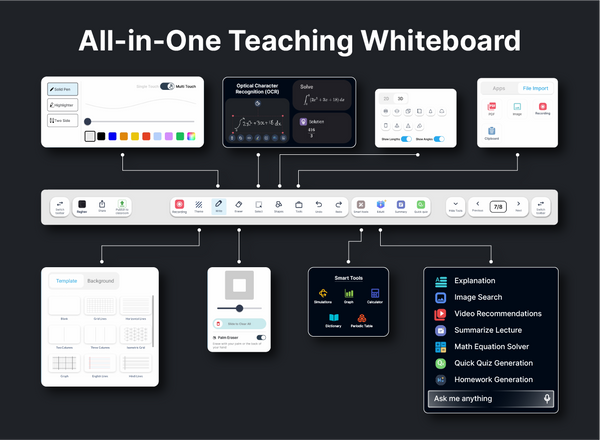
Introduction: The Power of the Right Display
Classrooms are changing fast. Gone are the days when lessons were confined to chalk dust and static whiteboards. Today’s teachers harness interactive displays to deliver multimedia-rich content, spark spontaneous collaboration, and adapt in real time to student needs. But when it comes to choosing a display, nothing influences usability and engagement more than size. Pick a board that’s too small, and students struggle to see details; go too large, and you risk overwhelming the room. This guide will help you find the perfect balance for your learning space.
Understanding Viewing Distance and Classroom Dynamics
Every digital display has an optimal viewing range, where content remains crisp and legible. To calculate this, measure the farthest student’s distance from the board and choose a screen whose diagonal size corresponds to about one-sixth to one-eighth of that distance. For example, in a room where the farthest desk sits 12 feet (144 inches) from the board, a 24″–36″ display would technically suffice – but small boards limit interactivity and group engagement. Instead, many schools opt for larger formats. When exploring solutions, it’s worth investigating a digital board for teaching that offers both visibility and versatility across a broad range of classroom setups.
Classroom Size Categories: Matching Board to Space
Not all classrooms are created equal. Here’s a quick breakdown:
- Small Classrooms (Up to 20 Students):
Ideal for focused discussions and individualized instruction. A 55″–65″ display typically covers this space, offering clear visuals without dominating the room. - Medium Classrooms (20–40 Students):
With more seating and group tables, a 65″–75″ screen ensures that even students in the back row can read text and view intricate diagrams comfortably. - Large Lecture Halls (Over 40 Students):
To fill expansive walls and maintain engagement, 75″–86″ (or larger) displays are recommended. These sizes mimic small movie screens, granting everyone a front-row experience.
Resolution Matters: Clarity at Every Size
Size and resolution go hand in hand. A 4K (UHD) display delivers four times the pixel count of Full HD, ensuring that text, graphs, and images remain sharp – crucial for subjects like biology, engineering, and art. Smaller screens can get away with 1080p, but once you cross the 65″ threshold, consider stepping up to 4K to avoid pixelation. Crisp resolution reduces eye strain and keeps students focused on content rather than fuzzy edges.
Screen Orientation and Mounting Options
Most classrooms use landscape orientation, maximizing horizontal workspace for presentations, whiteboarding, and split-screen view. However, some subject areas – like coding labs or design studios – may benefit from portrait mode, which offers a taller canvas for vertical content. Flexible mounts, including motorized lifts and articulating arms, can adjust height and angle, catering to both seated and standing instruction. When planning installation, evaluate wall strength, electrical outlets, and cable management pathways to ensure a clean, professional setup.
Interactivity Zones: Touch and Collaboration
The larger the screen, the more room for hands-on collaboration. Multi-touch displays allow small groups to gather around and interact simultaneously – solving math problems, annotating texts, or sketching mind maps. For group work, ensure there’s ergonomic clearance: at least 2–3 feet of empty space in front of the board so students can move freely without bumping desks or walls.
Midway Checkpoint: Identifying Your “Best Fit”
By now, you’ve mapped out room dimensions, student seating patterns, and interaction goals. At this midpoint, many schools zero in on models dubbed the best digital board for teaching. These solutions strike a well-crafted balance – offering robust 4K touchscreens, multiple HDMI/USB-C inputs, and cloud-connectivity for lesson archives. With basic needs met, you can focus on extra features like built-in video conferencing, stylus support, or subject-specific app ecosystems.
Budgeting and Total Cost of Ownership
Bigger displays command higher upfront investment but can deliver strong long-term value. When budgeting, look beyond the purchase price: account for installation labor, optional accessories (styluses, wireless presentation modules), software licenses, and extended warranties. Factor in energy consumption, too – larger panels may draw more power, impacting operating costs. Many districts offset initial expenses through bulk-purchase discounts or phased rollouts over multiple academic years.
Pilot Programs: Real-World Feedback
No spec sheet replaces firsthand experience. Before committing to a full-scale deployment, run a pilot in two or three representative classrooms: one small, one medium, and one large. Observe how different board sizes affect engagement, lesson flow, and technical reliability. Solicit feedback from both teachers and students – are details clear from all seats? Does the display’s real estate enhance group activities? Use these insights to refine purchase orders, ensuring each classroom receives the optimal screen.
Installation Best Practices and Maintenance
Proper installation is half the battle. Hire certified technicians to handle wall mounts, network cabling, and power hookups. Ensure firmware and drivers are updated before the first lesson. Create a simple user guide highlighting key functions – like mirroring devices, switching inputs, and annotating slides. Schedule routine maintenance checks: clean the screen surface with approved solutions, verify touch calibration, and monitor software updates. A proactive approach keeps downtime to a minimum.
Training Your Team: Maximizing ROI
Even the most advanced display is only as effective as its users. Host hands-on workshops where educators practice lesson creation, experiment with split-screen modes, and learn quick annotation shortcuts. Appoint “digital champions” among faculty to foster peer-to-peer learning. Encourage teachers to share creative use cases – virtual labs, interactive storyboarding, real-time polling – that leverage the board’s full capabilities. With confidence and competence, your staff will transform static lectures into dynamic learning experiences.
Measuring Success and Scaling Up
Post-deployment, track metrics such as:
- Frequency of Interactive Sessions: How often do teachers use touch features versus passive projection?
- Student Engagement Scores: Surveys measuring attentiveness and participation.
- Academic Outcomes: Improvements in test scores or project quality in classes using interactive boards.
- Technical Performance: Uptime rates and incidence of technical issues.
Use these data to make informed decisions about future investments – whether that means adding ancillary tools like styluses, expanding to more classrooms, or upgrading to even larger formats in specialized labs.
Conclusion: Tailoring Size to Your Vision
Choosing the right digital display size isn’t a one-size-fits-all affair. It’s a strategic decision that marries physical space, pedagogical goals, and budget realities. By understanding viewing distances, resolution requirements, and collaborative needs – and by piloting options before a full rollout – you’ll pinpoint the perfect screen that elevates teaching and captivates learners. With the right size in place, your school’s investment in interactive technology will pay dividends through richer lessons, deeper engagement, and a classroom experience that truly shines.

